Release Notes
November 2019
What's New
In our November release, we’re introducing Location Tracking as a new feature in KACE Cloud MDM. Location tracking lets administrators monitor and maintain their device inventory with functions that allow them to:
- Enable or disable the location tracking feature
- Collect real-time location information
- Set range for collecting data location
- Enable or disable device suspend limits
- Set compliance parameters
- Link or display the company’s data privacy policy, and
- Provide a complete location history of device(s)
Location tracking is available for iOS and Android devices, but is not currently available for Mac devices.
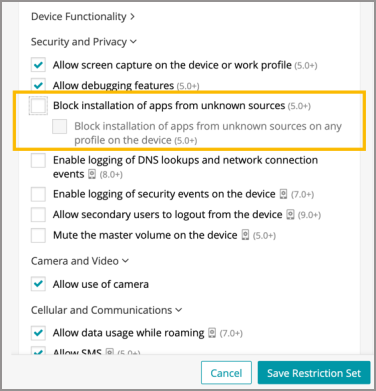
In addition to location tracking capabilities, we've added two feature enhancements. For device list exports, username and email columns have been added to the .csv file. For Android app installations, the default has been reset so that unknown sources will be allowed to install apps on Android devices.
New Feature: Location Tracking
Approve KACE Cloud Connect App (Android)
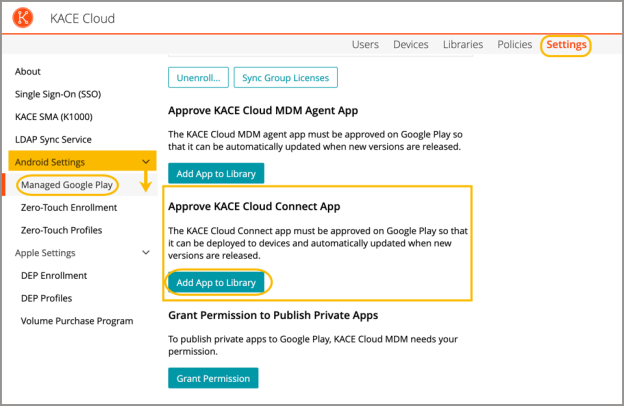
To successfully deploy the KACE Cloud Connect app to Android end users, an admin will first need to add the app to KACE Cloud MDM. (The KACE Cloud Connect app is automatically imported into the library for iOS.)
- Go to Settings in top navigation.
- Select Android Settings in left navigation.
- Select Managed Google Play.
- Under Approve KACE Cloud Connect App, click Add App to Library.
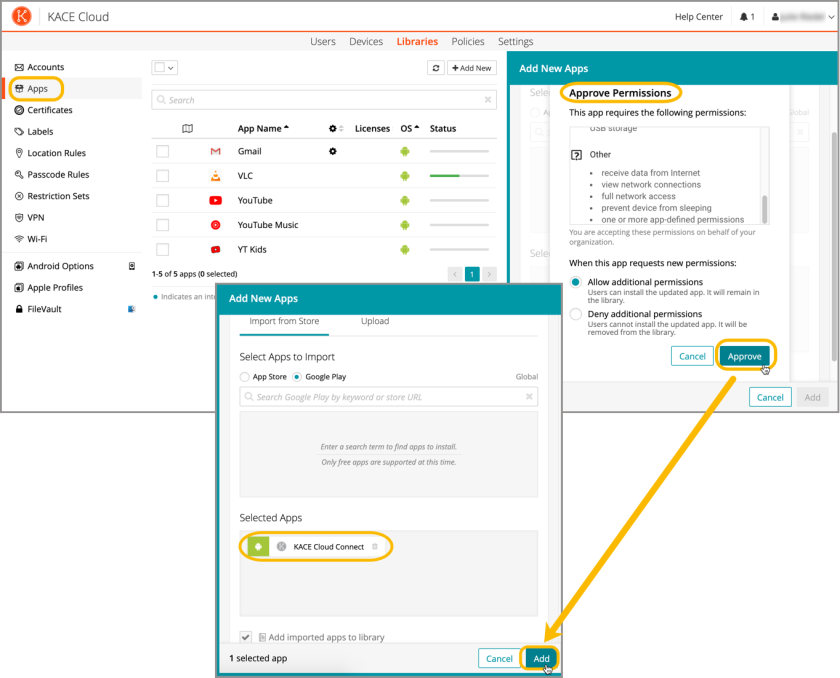
The admin will be taken to the App Libraries page to complete the process.
- In the right panel, review/update permissions, then click Approve.
- To add the app to the library, click Add.
Add a New Location Rule Set
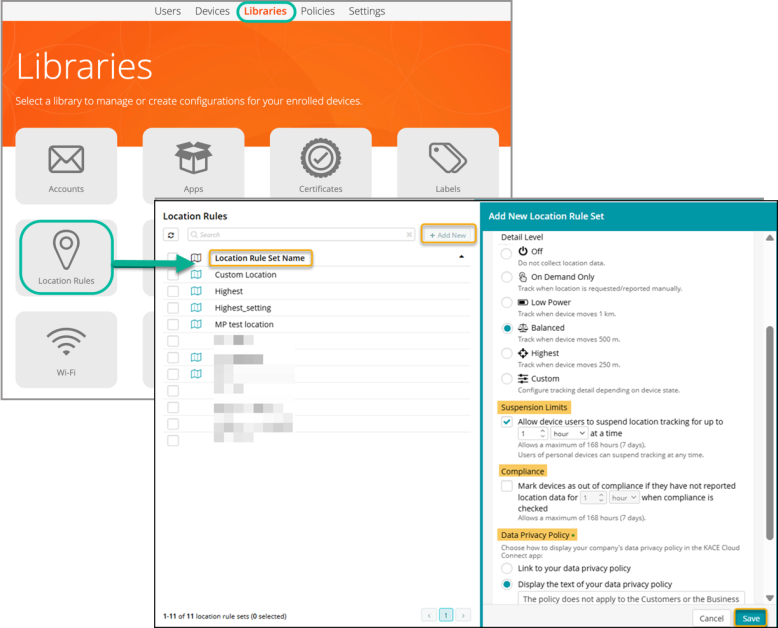
To create a unique location tracking configuration, an admin will add a new rule set. To deploy that rule set to a specific group of users or devices, an admin can link the rule set to an existing policy. Like Restriction Sets and Passcode Rules, Location Rules can be accessed through the Libraries.
- Go to Libraries in top navigation.
- Select Location Rules.
- Click Add New.
- Make selections to configure the rule set.
- Click Save.
The 'Add New Location Rule Set' Form
Name - Mandatory. The parameters of rule sets can vary greatly, so it’s important to create a distinct and utilitarian name for each.
Description - Optional but recommended. Depending on the size of your organization and the variety of rule sets you create, it is always helpful to create a record of why the rule is being created and listing any special notes that could easily be forgotten.
Detail Level - The detail level allows an admin to decide whether or not to enable data collection. And if enabled, whether to capture data in an on-demand capacity; regulate itself when the device is on low power; set a balanced limit; set the highest possible tracking levels, or to create a custom configuration for tracking detail.
Compliance - The compliance setting lets an admin mark devices as out of compliance if they have not reported a data location for a set amount of time (hours or days) when compliance is checked.
Data Privacy Policy - An admin can choose how to display the company’s data privacy policy to an end user—either through a link to the policy that will open a new window, or by pasting the full text of their policy into the KACE Cloud MDM form to display within the workflow. Note that if a link is used, it must reference a secure https URL.
Add Location Rules to Devices or Groups of Devices
To link rules to users and devices, use Policies.
- Go to the Policies section in top navigation.
- Select an existing policy.
- Next to the Applies to section, click Edit.
- Select Location Rules in the left-hand panel.
- Select the rule set you'd like to link to the policy.
- Click Link to Policy, then click Push Changes.
_751x299.png)
Notifying end users - Once changes have been successfully pushed, an admin will need to notify their end users that the KACE Connect app has been deployed to their devices. The end user will then need to open the app on their device and follow the prompts to allow location tracking—and for iOS, notifications.
Feature Enhancements:
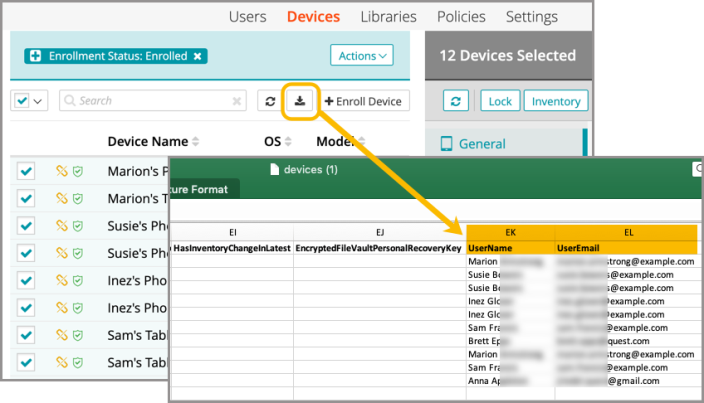
Device List Exports
The device list export now contains the username and email address of the user assigned to the device.
Android App Installations
The default status of the 'Block installation of apps from unknown sources' restriction has been changed to allow installations from unknown sources.
For more information on location tracking and rules, please visit the Location Management section in the Help Center.
Resolved Issues
Known Issues
Additional Resources
Getting Started with KACE Cloud MDM
© 2019 Quest Software Inc.
ALL RIGHTS RESERVED.
This guide contains proprietary information protected by copyright. The software described in this guide is furnished under a software license or nondisclosure agreement. This software may be used or copied only in accordance with the terms of the applicable agreement. No part of this guide may be reproduced or transmitted in any form or by any means, electronic or mechanical, including photocopying and recording for any purpose other than the purchaser’s personal use without the written permission of Quest Software Inc.
The information in this document is provided in connection with Quest Software products. No license, express or implied, by estoppel or otherwise, to any intellectual property right is granted by this document or in connection with the sale of Quest Software products. EXCEPT AS SET FORTH IN THE TERMS AND CONDITIONS AS SPECIFIED IN THE LICENSE AGREEMENT FOR THIS PRODUCT, QUEST SOFTWARE ASSUMES NO LIABILITY WHATSOEVER AND DISCLAIMS ANY EXPRESS, IMPLIED OR STATUTORY WARRANTY RELATING TO ITS PRODUCTS INCLUDING, BUT NOT LIMITED TO, THE IMPLIED WARRANTY OF MERCHANTABILITY, FITNESS FOR A PARTICULAR PURPOSE, OR NON-INFRINGEMENT. IN NO EVENT SHALL QUEST SOFTWARE BE LIABLE FOR ANY DIRECT, INDIRECT, CONSEQUENTIAL, PUNITIVE, SPECIAL OR INCIDENTAL DAMAGES (INCLUDING, WITHOUT LIMITATION, DAMAGES FOR LOSS OF PROFITS, BUSINESS INTERRUPTION OR LOSS OF INFORMATION) ARISING OUT OF THE USE OR INABILITY TO USE THIS DOCUMENT, EVEN IF QUEST SOFTWARE HAS BEEN ADVISED OF THE POSSIBILITY OF SUCH DAMAGES. Quest Software makes no representations or warranties with respect to the accuracy or completeness of the contents of this document and reserves the right to make changes to specifications and product descriptions at any time without notice. Quest Software does not make any commitment to update the information contained in this document.
If you have any questions regarding your potential use of this material, contact:
Quest Software Inc.
Attn: LEGAL Dept.
4 Polaris Way
Aliso Viejo, CA 92656
Refer to our website (www.quest.com) for regional and international office information.
Patents
Quest Software is proud of our advanced technology. Patents and pending patents may apply to this product. For the most current information about applicable patents for this product, please visit our website at www.quest.com/legal.
Trademarks
Quest and the Quest logo are trademarks and registered trademarks of Quest Software Inc. in the U.S.A. and other countries. For a complete list of Quest Software trademarks, please visit our website at www.quest.com/legal. All other trademarks, servicemarks, registered trademarks, and registered servicemarks are the property of their respective owners.